
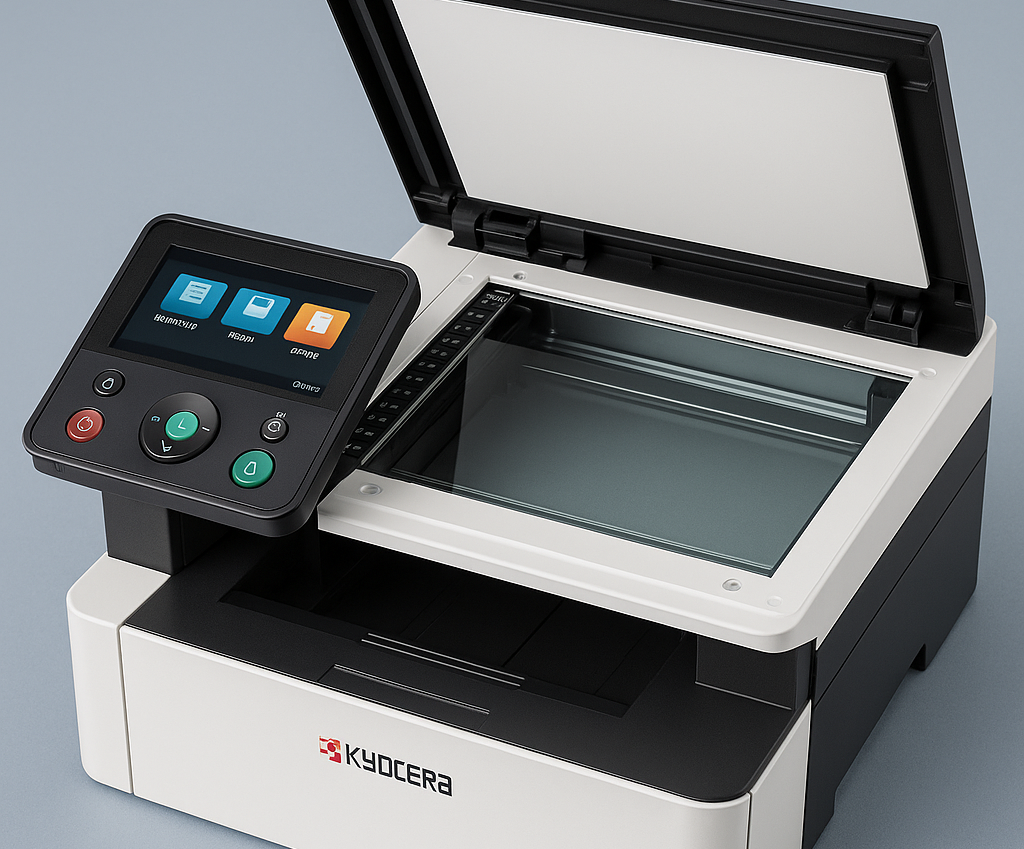
Kyocera’s Quick Scan utility is one of those underrated workflow accelerators that quietly transforms a chaotic document routine into an organized, digital-first system. If you’re scanning daily—contracts, invoices, forms, creative assets—Quick Scan helps you push those files directly into your digital ecosystem with minimal touches. With the right setup, you can turn your Kyocera MFP into a productivity engine that saves minutes on every task and hours across your week.
Why Kyocera Quick Scan Matters
Quick Scan isn’t just about capturing pages—it’s about reducing friction. From automated naming rules to instant cloud routing, Quick Scan trims unnecessary steps out of your day. For hybrid workers and small teams especially, it becomes the connective tissue between paper workflows and modern digital tools.
Here’s how to get the most out of it.
1. Build a Smart Folder Structure Before You Start Scanning
Scanning is only useful if what you capture is easy to find later. Quick Scan integrates perfectly with folder hotkeys and mapped directories, letting you create a “no-thinking-required” structure.
- Create departmental or project-based folders such as Finance → Invoices → 2024.
- Use numbered prefixes to force logical sorting (“01-Clients”, “02-Projects”).
- Assign each folder to a Quick Scan profile so the output lands in the correct destination every time.
- Make shared folders read/write to avoid permission errors that interrupt workflows.
This foundation eliminates naming chaos and manual sorting later.
2. Create Purpose-Built Quick Scan Profiles
Quick Scan profiles are the secret sauce. They let you automate 90% of your scanning steps.
Create presets for tasks you repeat daily:
- Scan to Email: Perfect for approvals, signatures, or sending files directly to clients.
- Scan to PDF/A: Archival-friendly format for compliance-heavy industries.
- Scan to OCR: Convert text for searching, copying, and editing.
- Scan to Cloud: Sync instantly to OneDrive, Google Drive, or SharePoint.
- High-Resolution Photo Scan: Ideal for designers and marketing teams.
Once created, these profiles eliminate repetitive settings adjustments and reduce errors.
3. Use OCR to Turn Paper into Searchable Knowledge
The OCR engine in Kyocera Quick Scan is accurate, fast, and essential for productivity. Instead of digging through PDFs manually, you can search keywords instantly.
- Enable OCR for all text-based scans—contracts, invoices, reports, forms.
- Choose “Editable Text” for documents you’ll revise in Word or Google Docs.
- Use “Searchable PDF” for compliance and long-term storage.
- Pair OCR output with cloud search tools for instant indexing.
OCR turns every sheet of paper into a fully indexed part of your digital workflow.
4. Automate Filing With Naming Conventions
Nothing slows a workflow like manually renaming dozens of scanned files. Quick Scan can automate this with templates.
Useful naming rules include:
- [Date]-[ClientName]-[DocumentType].pdf
- Invoice_[YYYYMMDD]_[VendorName].pdf
- Project_[Task]_[UserInitials].pdf
This ensures consistency, improves search accuracy, and reduces the need to manually clean up misnamed files later.
5. Integrate Quick Scan with Cloud Storage Services
Pairing Quick Scan with cloud storage services creates an “always-synced” workflow. Scans appear on any device instantly.
Google Drive
- Sync Drive for Desktop.
- Assign a Quick Scan profile to a specific Drive folder.
- Use Drive tagging for team workflows.
OneDrive
- Map your OneDrive folder as a Quick Scan destination.
- Use shared libraries for multi-team environments.
- Pair with Microsoft 365 apps for editing and collaboration.
SharePoint
- Ideal for enterprise workflows and version control.
- Scan directly into document libraries for instant indexing.
- Use metadata fields to categorize submissions.
This integration closes the loop between physical documents and your digital ecosystem.
6. Boost Team Productivity with “Scan to Email” Groups
If your team frequently circulates scanned content, Scan to Email is a must-use feature. You can create predefined groups and avoid manually typing emails every time.
- Department lists such as Finance, Marketing, HR.
- Client groups for frequent external partners.
- Approval-routing lists for invoice or PO signoffs.
- Temporary project groups that can be removed when finished.
With one tap, your scan reaches everyone who needs it.
7. Use Duplex Mode to Cut Scan Time in Half
If you’re scanning multi-page contracts or manuals, duplex mode is indispensable.
- Scan both sides of a page automatically.
- Reduce manual page flipping.
- Improve accuracy for legal documents and forms.
- Maintain document order when batching large sets.
Pair duplex mode with OCR for a clean, searchable final document.
8. Optimize Scan Quality Based on Your Task
You don’t need 600 DPI for every job. High DPI scans take longer and create oversized files.
- 300 DPI for text (fast, clear, efficient).
- 200 DPI for internal drafts (small file size).
- 400–600 DPI for graphics (design-quality).
- Color mode only when required to cut storage use in half.
Choosing the right quality settings keeps storage under control and maintains speed.
9. Use Quick Scan with Kyocera’s Mobile Apps
Kyocera Mobile Print extends Quick Scan functionality to smartphones and tablets.
- Scan from your phone even when away from your desk.
- Send scans to cloud apps like Dropbox or OneDrive instantly.
- Use the app as a remote control for Quick Scan actions.
- Annotate on mobile before sharing with teams.
This is perfect for field workers, hybrid setups, or anyone who travels frequently.
10. Integrate Quick Scan with Document Management Systems (DMS)
If you’re using a DMS—such as M-Files, DocuWare, eFileCabinet, or Kyocera’s own DMConnect—Quick Scan feeds these systems directly.
- Auto routing of PDFs into the correct DMS folder.
- Metadata tagging for search and indexing.
- Automated compliance workflows for retention and auditing.
- Centralized search capabilities across all scanned documents.
This integration turns your MFP into a digital capture gateway.
11. Maintain Your Kyocera MFP for the Best Scanning Results
A well-maintained scanner produces cleaner, more accurate results—and saves time in post-processing.
- Clean the glass weekly to avoid streaks.
- Dust the ADF rollers so pages feed straight.
- Update firmware to maintain OCR compatibility.
- Calibrate color occasionally for consistent results.
- Check for driver updates for better PC integration.
Investing a few minutes in maintenance prevents workflow interruptions later.
12. Use Quick Scan to Support Compliance and Audit Workflows
Quick Scan plays a major role in industries with strict documentation rules—finance, healthcare, legal, government, and logistics.
- PDF/A format ensures long-term readability.
- Metadata tagging supports audit trails.
- Watermarking (via DMS) adds security layers.
- Automated routing ensures files reach the correct repository.
- OCR indexing makes compliance checks significantly faster.
Strong scanning workflows reduce risk and improve operational visibility.
13. Speed Up Your Workflow with Hotkeys and Shortcuts
Windows and macOS users can turn Quick Scan into a truly one-touch system using automation tools.
Windows
- Create a desktop shortcut to a Quick Scan profile.
- Use Power Automate to route files to apps like Teams or SharePoint.
- Auto-sort scans with scripts based on file names.
macOS
- Use Automator or Shortcuts to process scans automatically.
- Create rules with Hazel to rename, move, or tag files on arrival.
- Sync output folders with your preferred cloud service.
Simple shortcuts deliver compound productivity gains over time.
Kyocera Quick Scan is built for speed, accuracy, and simplicity—but its real strength emerges when you customize it. Whether you’re managing invoices, capturing contracts, archiving records, or collaborating across hybrid teams, Quick Scan becomes an essential bridge between physical documents and digital workflows.
With smart profiles, automated naming, cloud integration, OCR, and optimized presets, you can shave minutes off every task—and dramatically boost your team’s productivity.
Set it up once. Save time forever.